Tripous is an open source desktop database application framework written in C# that uses Windows Forms as the Presentation Layer. Tripous is a handy tool in creating traditional client-server applications.
To use Tripous you need .Net 3.5 with Service Pack 1 and Visual Studio 2008.
Tripous is an ancient Greek word meaning a three-legged stand. Tripod is a synonym. Delphic Pythia were sitting on a tripous when she was making her oracles. Talking to a database server is similar to talking to an oracle. You issue a query but you have no idea what you are going to get back as an answer. And since the Tripous framework is about data I find Tripous is a suitable name.
In this page you’ll find Tripous binaries, Tripous sources, tutorials and documentation about Tripous, other .Net and C# related tutorials and some other tutorials and material.
Tripous is a framework for rapid development of data entry applications.
A framework is a code base that provides services in building applications. .Net is such a framework. Most programming environments deserve that classification too. So why bother to build such a framework? Isn't .Net and all those .Net classes enough? Well, yes it is.
A framework is required
No P/Invoke. Tripous vanity is to be, some day, a drifter in the iki/Mono_(software)">Mono world. And in the DotGNU continent. So it uses P/Invoke only when there is no other solution. For instance it uses P/Invoke to call the Remote API (RAPI). P/Invoke marries the framework to a certain system. And that's not a good habit for a framework. A friendship is more than enough.
Tripous main task is to handle data stored in relational databases. So we can say that Tripous is mainly a database application framework.
There are two types of database application frameworks: the, lets name them, traditional frameworks and the Object Relational Mapping Frameworks (ORM) or Object Persistent Frameworks (OPF).
In an ORM/OPF framework database tables are mapped to classes. The user of such a framework has to do with objects and lists of objects. Not datasets nor database tables. A class is built upon one or more database tables and the properties of that class are mapped, more or less, to database fields. This is a simplistic description though. Anyway, that mapping technique has some limitations, especially when the underlying database schema is not going to remain unaltered for ever (In my country that schema alterations happen very frequently). If the schema changes then a re-mapping of the objects and a re-compilation of the application is required.
Besides ORMs some programming environments provide a so called typed dataset, that is a Dataset-like object where field names of an underlying database table are already properties of a DataTable. PowerBuilder and .Net are examples of such environments.
The whole idea of the ORMs and the typed-datasets is that programmers know classes and must handle just classes and objects. Nothing else. That religion also believes that any exposition to database tables and SQL statements such as SELECT, INSERT etc, may harm programmers' attitude and lead them to some kind of a dissapointment. So ORM frameworks, like a magician, build the illusion that data is local to the application and not in the database. And as Anders Hejlsberg says "You may want to have the illusion that the data is not in a database. You can have that illusion, but it comes at a cost.".
Tripous is not an ORM framework. (The truth is that, once upon a time, when Tripous was younger it had a different tongue, Delphi Pascal namely, and it was an ORM-wanna-be. But that's history now). Instead it is a "traditional" framework. And although it has a business object, the Broker class, it provides full access to database tables and fields. So Tripous gives you direct access to Dataset, DataTable and DataRow objects. It does its best not to bother you but sooner or later you'll have to deal with those DataSomething creatures.
Sometimes there is a confusion of what a tier or a layer is. Let's make another hopeless attempt to clarify the issue.
A well designed database application owes to provide three distinct layers. Data access, Business logic and Presentation or User Interface. Think of them as departments in an organization. They must have clearly defined objectives, whithout overlaps. In practice that's tough though. Those layers are like kids fighting for the same toy: data.
In short, Data Access Layer hides the complexities of the various database types and provides uniformity in accessing database data by executing SELECT, INSERT, UPDATE etc statements coming from the Business Logic Layer. The Business Logic Layer solves the business problem, performs business operations, taking into account the so-called business rules ("no discount more than 10 percent for any new customer for the first three months, unless he is boss' cousin"), and provides data to the Presentation Layer. The Presentation or User Interface Layer controls all those visual elements, such as windows, menus and buttons, the user uses in interacting with the application, presents data to the user and returns any input to the Business Logic Layer. A well designed application decouples business logic from presentation. Anyway, that layering is mostly a logical stratification. That is, in most cases those three layers co-exist in the same physical executable.
Regarding physical layering, meaning different executable modules, there are two conflictual parties: the traditional client-server party and the modern multi-tier or n-tier party. In a client-server design there are two physical layers: the application is the one. The database and the database server (MS SQL, Oracle etc) is the other. In a multi-tier design, sometimes called n-tier, there is another one layer sitting between the application and the database: the Application Server or AppServer for brevity. That application server serves client applications passing business objects (Customer, Supplier, Order, etc) to them using a variety of technologies such as DCOM, CORBA etc. In a multi tier design, a client application talks to application server and stays away from the database server.
Tripous is not a Swiss army knife. It is a modest system that knows its limits. It targets small to medium businesses with a small intranet or VPN. Under those conditions a traditional client-server system is quite enough.
Regarding business logic, a database application may logically divided into business modules. Each module, say Customer or Store or Sales module, uses a set of correlated tables. For instance an imaginary Sales module may use the CUSTOMER, MATERIAL, TRADE and TRADE_LINES tables.
A table may belong to one of the following categories in regard to the nature of data and the number of rows it may have: Master table, LookUp table, Transaction table and Correlation table.
Master is a table when there are other tables that have foreign keys to it. A master table usually has more than two or three fields and many thousand rows. A CUSTOMER or MATERIAL table is considered to be a master table. A master table may contain foreign keys to other master or lookup tables.
Lookup is a table with a few fields and a few, at most, hundred rows. A lookup table is a “literal provider” to other tables that maintain a foreign key to it. It usually has ID, CODE and NAME fields. An OCCUPATION or MEASURE_UNIT or COUNTRY table is considered to be a lookup table. A perfect lookup table contains no foreign keys to other tables.
Transaction table is a table that records transactions of master tables. Sometimes they called historical tables or even trade tables. A transaction table can easily have millions of rows. An ORDERS or TRADE table is considered to be a transaction table. Transaction data very often require two or even more tables in a master-detail relationship forming a table tree. For instance ORDERS and ORDER_LINES, where the ORDERS, the master, contains information regarding the Customer, the Date of transaction etc while the ORDER_LINES, the detail, records information regarding goods, quantities and prices and an ID to the ORDERS.
Correlation table is a table that correlates two, or even more, Master tables. Usually a correlation table records only IDs from those Master tables an nothing more. A Correlation table usually records many to many relationships. For instance a CAR and a DRIVER Master table may require a CAR_DRIVER Correlation table. A driver may have many cars in his responsibility.
Regarding table classification and table tree composition Tripous rely on you, the programmer. Tripous offers the Broker class that represents a business module. A Broker is the business object in Tripous. Internally a Broker uses a TableSet class that handles the table-tree.
The TableSet class handles the set of tables of a business module, discussed above. Each table is represented by a DataTable instance. The TableSet.TopTable property denotes the top DataTable. TopTable is the top DataTable in a tree of DataTable objects where a DataTable of a lower level is the master in a master-detail relationship to DataTables of the next greater level.
Normalization is a term used in database programming to describe the techniques involved in designing tables in order to minimize duplication of information.
For instance, in a CUSTOMER table it's not wise to have an OCCUPATION_NAME string field. Instead you use an OCCUPATION_ID foreign key field pointing to the ID primary key field of the OCCUPATION table. The same stands true for an ORDER_LINES Transaction table and a MATERIAL Master table. The ORDER_LINES should have a MATERIAL_ID, not a MATERIAL_CODE or MATERIAL_NAME field.
In short, a bit of information is stored once and only once and in a certain table. Any other table that wants access to that bit of information it just maintains a reference to it. That's called normalization.
Normalization is not a panacea. It is used in a so called “Production Database”, that is a database used in the daily processing of transactions. Normalization is not used in a “Warehouse database” where the primary use is for “data mining” operations.
You may check the entries Database Normalization, Data Warehouse and Data Mining at wikipedia.. But regarding Normalization, please, don't spend much time reading those texts, unless you' re a student looking reference material for the next semester. Conventional wisdom is quite enough. At least for the area Tripous tries to cover.
Here is a rule TriHere is a rule TriHere is a rule Tripous strictly follows: Every table in a database should have a field named ID (ok, if you insist, feel free to give it any name you want). That field is an Integer field or a GUID string field, it is the Primary Key, that is it uniquely identifies a row, and the most important, it has no business meaning at all.application user almost never sees that field.
Those unique IDs aThose unique IDs are called OIDs, Object Identifiers. Some SQL servers provide built-in mechanisms for the generation of those integer unique IDs. There are two forms: auto-increment fields and unique number generators. MS SQL and Informix the first category while Interbase/Firebird and Oracle in the second.
A database application mainly consists of data entry forms. But how a data entry form should look-like? Well, there are a few hundred different opinions on that. There are just four things, and believe me no more, one can do with data: SELECT, INSERT, UPDATE and DELETE. A very limited repertoire. (Lets admit it. Our job as database application programmers is not that hard but better keep the secret among us).
A Tripous data entry form has two parts: a browse (or list) part and an edit (or item) part. The data in the list part comes by issuing a "select * from TableName" statement (that's not accurate though since that SELECT would be as complex as the it gets). The application user can configure an optional WHERE clause of that SELECT statement each time the statement is executed. The data of the list part is displayed in a read-only browser grid. The data in the edit part, when editing, comes by executing a "select * from TableName where Id = x" statement . The Id value comes from the list part after a user selection. When inserting, the edit part displays just empty controls. This is a short description of a Tripous Master form. A master form serves Master and Transaction tables.
The second kind of Tripous data entry form is the List form. The list form has no separate edit part. All data entry happens in the browser grid and changes are commited all at once. A list form serves LookUp tables.
SELECTing data for a report or any other BI purpose is a totally different thing than SELECTing data for data entry purposes. So we can safely ignore it for now.
No stored procedures. Tripous is allergic to stored procedures. Stored procedures tie an application to a certain database server. Tripous targets small to medium businesses. Some of them, the wealthier, may already have a commercial database server. Some of them, the wiser, may not, because they want to cut down the cost and use an open source server. So anything that ties an application to a certain database server is not that good choise.
There is a rumor though that stored procedures are executed in a fraction of time than normal SQL statements do, and that's because the database server pre-compiles the stored procedure code. I'm not quite sure about that rumor, but I have to say that a decent database server should retain execution plans for all SQL statements in its internal cache, not just stored procedure execution plans. And if it don't then I consider that as a major flaw. I admit though that my opinion lacks the proper validity.
The secret is to use parameterized SQL. This is what Tripous does. Something like "select * from CUSTOMER where ID = :ID". From a database server point of view this statement looks much better than the usual "select * from CUSTOMER where ID = 1234".
Tripous library source code comes as a compressed file that contains just a single Visual Studio solution.
The solution contains the following folders
The Compact folder contains
The Desktop folder contains
The Plugins folder contains
(Tripous tries to follow a pluggable architecture with many code elements (i.e. forms and other classes) and not only with external module plugins. This means that you may provide your own code, overriding Tripous default solution, if any at all.)
The Printing folder contains a project which is going to be the Tripous Reporting Library, time permitting.
Just decompress the sources to a directory. There is no need to install anything in the GAC. Locate the solution file (TripousLib.sln) and double-click it. The VS opens and loads the solution. Just rebuild the solution and everything should be ready. There is nothing more to say here except of an old wish I learned when I was a Jedi knight: "may the source be with you".
If you are going to do some Compact Framework development using Tripous, then you better read carefully the two ReadMe.txt files found in the TripousPPC5.Design and the TripousPPC5.DesignAttributesHack projects.
The compilation process produces the two assemblies you need to reference in any Tripous project
Create a new solution with a Windows Forms Application project. Name the project as DevAppDesktop.
Rename project's default namespace (Solution Explorer | right click on the project | Properties | Application | Default namespace) to Project.
Add a reference to the Tripous.dll assembly.
Build (Shift + F6) the project.
Rename the Form1 to MainForm.
Set its IsMdiContainer property to true.
Your MainForm must inherit from Tripous.Forms.SysMainForm. Also you have to add some using directives to the MainForm.cs file. Here it is.
    using System;
    using System.Collections.Generic;
    using System.ComponentModel;
    using System.Data;
    using System.Drawing;
    using System.Windows.Forms;
    using System.Threading;
    using System.IO;
    using Tripous;
    using Tripous.Forms;
    using Tripous.Data;

    namespace Project
    {
        public partial class MainForm : SysMainForm
        {
            public MainForm()
            {
                InitializeComponent();
            }
        }
    }
The SysMainForm class is a base class used in deriving main forms. We'll examine it in depth in a later tutorial.
Add a new code file to the project, name it as ApplicationManager.cs. Here is the code.
    using System;
    using System.Collections.Generic;
    using System.Windows.Forms;
    using System.Drawing;
    using System.Data;
    using Tripous;
    using Tripous.Forms;
    using Tripous.Data;
    using Tripous.BusinessModel;
    using Tripous.Sockets;

    namespace Project
    {
        class ApplicationManager : ApplicationManagerDesktop
        {
            /* construction */
            public ApplicationManager()
            {
                Db.ErrorsVisible = true;
                Variables["User.Enabled"] = true;
                Variables["CompanyId"] = 1;
            }
        }
    }
The ApplicationManagerDesktop class inherits from the ApplicationManagerBase class. There must be one and only one application manager in any Tripous application. An application manager acts like a traffic policeman who wants to be a leader in a hard rock band. Authority and anarchy at the same package.
The Db class is the central class in the Tripous.Data namespace. Just a collection of helper static methods actually. The Tripous.Variables class is a collection of named variables that can be persisted to xml. Here the ApplicationManager.Variables property is an instance of that Variables class and it maintains some useful settings.
Go back to the MainForm.
Add a System.Windows.Forms.MenuStrip to the MainForm and name it as mnuMain.
Add a System.Windows.Forms.ToolStrip to the MainForm and name it as ToolBar.
Add a System.Windows.Forms.StatusStrip to the MainForm and name it as StatusBar. Add seven System.Windows.Forms.ToolStripStatusLabel items to that StatusBar and name them as following.
        lblLight
        lblHint
        lblAppName
        lblUser
        lblProfile
        lblDate
        lblTime
Add a Tripous.Forms.LeftSide to the MainForm and name it LeftSide. LeftSide is Tripous control with the secrect ambition to resemble MS VS's ToolBox some day.
Here are the declarations of those objects in my MainForm.Designer.cs file.
        private System.Windows.Forms.MenuStrip mnuMain;
        private System.Windows.Forms.ToolStrip ToolBar;
        private System.Windows.Forms.StatusStrip StatusBar;
        private System.Windows.Forms.ToolStripStatusLabel lblHint;
        private System.Windows.Forms.ToolStripStatusLabel lblLight;
        private System.Windows.Forms.ToolStripStatusLabel lblUser;
        private System.Windows.Forms.ToolStripStatusLabel lblAppName;
        private System.Windows.Forms.ToolStripStatusLabel lblProfile;
        private System.Windows.Forms.ToolStripStatusLabel lblDate;
        private System.Windows.Forms.ToolStripStatusLabel lblTime;
        private Tripous.Forms.LeftSide LeftSide;
Here is the full IntializeComponent() method from my MainForm.Designer.cs file.
        private void InitializeComponent()
        {
            this.mnuMain = new System.Windows.Forms.MenuStrip();
            this.ToolBar = new System.Windows.Forms.ToolStrip();
            this.StatusBar = new System.Windows.Forms.StatusStrip();
            this.lblLight = new System.Windows.Forms.ToolStripStatusLabel();
            this.lblHint = new System.Windows.Forms.ToolStripStatusLabel();
            this.lblAppName = new System.Windows.Forms.ToolStripStatusLabel();
            this.lblUser = new System.Windows.Forms.ToolStripStatusLabel();
            this.lblProfile = new System.Windows.Forms.ToolStripStatusLabel();
            this.lblDate = new System.Windows.Forms.ToolStripStatusLabel();
            this.lblTime = new System.Windows.Forms.ToolStripStatusLabel();
            this.LeftSide = new Tripous.Forms.LeftSide();
            this.StatusBar.SuspendLayout();
            this.SuspendLayout();
            //
            // mnuMain
            //
            this.mnuMain.Location = new System.Drawing.Point(0, 0);
            this.mnuMain.Name = "mnuMain";
            this.mnuMain.Size = new System.Drawing.Size(570, 24);
            this.mnuMain.TabIndex = 0;
            this.mnuMain.Text = "menuStrip1";
            //
            // ToolBar
            //
            this.ToolBar.Location = new System.Drawing.Point(0, 24);
            this.ToolBar.Name = "ToolBar";
            this.ToolBar.Size = new System.Drawing.Size(570, 25);
            this.ToolBar.TabIndex = 1;
            this.ToolBar.Text = "toolStrip1";
            //
            // StatusBar
            //
            this.StatusBar.Items.AddRange(new System.Windows.Forms.ToolStripItem[] {
            this.lblLight,
            this.lblHint,
            this.lblAppName,
            this.lblUser,
            this.lblProfile,
            this.lblDate,
            this.lblTime});
            this.StatusBar.Location = new System.Drawing.Point(0, 389);
            this.StatusBar.Name = "StatusBar";
            this.StatusBar.Size = new System.Drawing.Size(570, 22);
            this.StatusBar.TabIndex = 0;
            this.StatusBar.Text = "statusStrip1";
            //
            // lblLight
            //
            this.lblLight.AutoSize = false;
            this.lblLight.BackColor = System.Drawing.Color.Green;
            this.lblLight.BorderSides = ((System.Windows.Forms.ToolStripStatusLabelBorderSides)((((System.Windows.Forms.ToolStripStatusLabelBorderSides.Left | System.Windows.Forms.ToolStripStatusLabelBorderSides.Top)
                        | System.Windows.Forms.ToolStripStatusLabelBorderSides.Right)
                        | System.Windows.Forms.ToolStripStatusLabelBorderSides.Bottom)));
            this.lblLight.BorderStyle = System.Windows.Forms.Border3DStyle.Etched;
            this.lblLight.DisplayStyle = System.Windows.Forms.ToolStripItemDisplayStyle.Text;
            this.lblLight.Name = "lblLight";
            this.lblLight.Size = new System.Drawing.Size(10, 17);
            //
            // lblHint
            //
            this.lblHint.AutoSize = false;
            this.lblHint.Name = "lblHint";
            this.lblHint.Size = new System.Drawing.Size(340, 17);
            //
            // lblAppName
            //
            this.lblAppName.AutoSize = false;
            this.lblAppName.Name = "lblAppName";
            this.lblAppName.Size = new System.Drawing.Size(90, 17);
            //
            // lblUser
            //
            this.lblUser.AutoSize = false;
            this.lblUser.Name = "lblUser";
            this.lblUser.Size = new System.Drawing.Size(90, 17);
            //
            // lblProfile
            //
            this.lblProfile.AutoSize = false;
            this.lblProfile.Name = "lblProfile";
            this.lblProfile.Size = new System.Drawing.Size(100, 17);
            //
            // lblDate
            //
            this.lblDate.AutoSize = false;
            this.lblDate.Name = "lblDate";
            this.lblDate.Size = new System.Drawing.Size(60, 17);
            //
            // lblTime
            //
            this.lblTime.AutoSize = false;
            this.lblTime.Name = "lblTime";
            this.lblTime.Size = new System.Drawing.Size(40, 17);
            //
            // LeftSide
            //
            //
            // LeftSide.Body
            //
            this.LeftSide.Body.Cursor = System.Windows.Forms.Cursors.Default;
            this.LeftSide.Body.Dock = System.Windows.Forms.DockStyle.Fill;
            this.LeftSide.Body.Location = new System.Drawing.Point(0, 0);
            this.LeftSide.Body.Name = "Body";
            this.LeftSide.Body.Size = new System.Drawing.Size(9, 502);
            this.LeftSide.Body.TabIndex = 3;
            this.LeftSide.Dock = System.Windows.Forms.DockStyle.Left;
            this.LeftSide.Expanded = false;
            this.LeftSide.Location = new System.Drawing.Point(0, 49);
            this.LeftSide.Name = "LeftSide";
            this.LeftSide.Pinned = false;
            this.LeftSide.Size = new System.Drawing.Size(14, 502);
            this.LeftSide.TabIndex = 3;
            this.LeftSide.Title = "Tools";
            //
            // MainForm
            //
            this.AutoScaleDimensions = new System.Drawing.SizeF(6F, 13F);
            this.AutoScaleMode = System.Windows.Forms.AutoScaleMode.Font;
            this.ClientSize = new System.Drawing.Size(570, 411);
            this.Controls.Add(this.LeftSide);
            this.Controls.Add(this.StatusBar);
            this.Controls.Add(this.ToolBar);
            this.Controls.Add(this.mnuMain);
            this.IsMdiContainer = true;
            this.Location = new System.Drawing.Point(0, 0);
            this.MainMenuStrip = this.mnuMain;
            this.Name = "MainForm";
            this.Text = "MainForm";
            this.StatusBar.ResumeLayout(false);
            this.StatusBar.PerformLayout();
            this.ResumeLayout(false);
            this.PerformLayout();

        }
The user interface of our MainForm is ready. So now we can go back to the MainForm.cs code file.
Add the Tripous.Forms.ICommandHost interface to the ancestor list of the MainForm class and implement its properties.
    public partial class MainForm : SysMainForm, ICommandHost
    {

        #region ICommandHost Members

        MenuStrip ICommandHost.MenuStrip
        {
            get { return this.MainMenuStrip; }
        }

        ToolStrip ICommandHost.ToolBar
        {
            get { return this.ToolBar; }
        }

        LeftSide ICommandHost.SideBar
        {
            get { return this.LeftSide; }
        }

        #endregion

        public MainForm()
        {
            InitializeComponent();
        }
    }
The ICommandHost interface represents an object that can display commands and other information. Usually this object is the main form. The ApplicationManager uses that ICommandHost object as the command displayer of the commands we add to it.
Add the next two private members to the MainForm class.
        /* private methods */
        private void Application_Idle(object sender, EventArgs e)
        {
            if (!DesignMode)
            {
                lblDate.Text = DateTime.Today.ToString("yyyy-MM-dd");
                lblTime.Text = DateTime.Now.ToString("HH:mm");

                lblAppName.Text = Sys.ApplicationTitle;
                lblUser.Text = User.UserName;
                lblProfile.Text = !string.IsNullOrEmpty(Manager.Profiles.Active) ? Manager.Profiles.Active : Sys.None;
            }
        }

        /* private properties */
        private ApplicationManager Manager { get { return ApplicationManager.Instance as ApplicationManager; } }
And then adjust the constructor to be as following.
        public MainForm()
        {
            InitializeComponent();

            if (!DesignMode)
            {
                appManagerType = typeof(ApplicationManager);
                Application.Idle += new EventHandler(Application_Idle);
            }
        }
The appManagerType is a protected field, of type System.Type, in the SysMainForm class. The appManagerType provides the type used in creating the actual application manager object. That appication manager instance is created by the SysMainForm.ApplicationInitialize() virtual method. We override that method and two others: the ApplicationFinalize() and the HandleEvent(). Here is the full MainForm.cs source code.
        using System;
        using System.Collections.Generic;
        using System.ComponentModel;
        using System.Data;
        using System.Drawing;
        using System.Windows.Forms;
        using System.Threading;
        using System.IO;
        using Tripous;
        using Tripous.Forms;
        using Tripous.Data;

        namespace Project
        {
            public partial class MainForm : SysMainForm, ICommandHost
            {
                #region ICommandHost Members

                MenuStrip ICommandHost.MenuStrip
                {
                    get { return this.MainMenuStrip; }
                }

                ToolStrip ICommandHost.ToolBar
                {
                    get { return this.ToolBar; }
                }

                LeftSide ICommandHost.SideBar
                {
                    get { return this.LeftSide; }
                }

                #endregion

                /* private methods */
                private void Application_Idle(object sender, EventArgs e)
                {
                    if (!DesignMode)
                    {
                        lblDate.Text = DateTime.Today.ToString("yyyy-MM-dd");
                        lblTime.Text = DateTime.Now.ToString("HH:mm");

                        lblAppName.Text = Sys.ApplicationTitle;
                        lblUser.Text = User.UserName;
                        lblProfile.Text = !string.IsNullOrEmpty(Manager.Profiles.Active) ? Manager.Profiles.Active : Sys.None;
                    }
                }

                /* private properties */
                private ApplicationManager Manager { get { return ApplicationManager.Instance as ApplicationManager; } }

                /* overrides */
                protected override void ApplicationInitialize()
                {
                    base.ApplicationInitialize();

                    Ini Ini = new Ini();
                    ToolBar.Visible = Ini.ReadBool("ToolBar.Visible", false);
                    LeftSide.Visible = Ini.ReadBool("SideBar.Visible", false);
                    LeftSide.LastWidth = Ini.ReadInteger("SideBar.LastWidth", LeftSide.LastWidth);
                    if (LeftSide.Visible)
                    {
                        LeftSide.Expanded = Ini.ReadBool("SideBar.Expanded", false);
                        if (LeftSide.Expanded)
                            LeftSide.Pinned = Ini.ReadBool("SideBar.Pinned", false);
                        if (LeftSide.Expanded || LeftSide.Pinned)
                            LeftSide.Width = Ini.ReadInteger("SideBar.Width", LeftSide.Width);
                    }
                }
                protected override void ApplicationFinalize()
                {
                    Ini Ini = new Ini();

                    Ini.WriteBool("SideBar.Visible", LeftSide.Visible);
                    Ini.WriteBool("SideBar.Expanded", LeftSide.Expanded);
                    Ini.WriteBool("SideBar.Pinned", LeftSide.Pinned);
                    Ini.WriteInteger("SideBar.Width", LeftSide.Width);
                    Ini.WriteInteger("SideBar.LastWidth", LeftSide.LastWidth);
                    Ini.WriteBool("ToolBar.Visible", ToolBar.Visible);


                    base.ApplicationFinalize();
                }
                protected override void HandleEvent(ArgList Args)
                {
                    if (!DesignMode && !IsDisposed)
                    {
                        base.HandleEvent(Args);

                        switch (Args.ValueOf("EventName", string.Empty).ToString())
                        {
                            case "Application.Executing":
                            case "Application.Waiting":
                                if (Args.ValueOf("Value", false))
                                    lblLight.BackColor = Color.Red;
                                else
                                    lblLight.BackColor = Color.Green;
                                break;
                        }
                    }
                }

                /* construction */
                public MainForm()
                {
                    InitializeComponent();

                    if (!DesignMode)
                    {
                        appManagerType = typeof(ApplicationManager);
                        Application.Idle += new EventHandler(Application_Idle);
                    }
                }
            }
        }
The Tripous.Ini class used in the ApplicationInitialize() and ApplicationFinalize() methods simulates a classic windows *.ini file using an xml file.
The overriden HandleEvent() method gets notifications sent by a Tripous.Broadcaster object. The Broadcaster class represents an object that sends event notifications to its subscribed listeners. The MainForm is such a listener since its base SysMainForm implements the Tripous.IListener interface. Any code can use a Broadcaster instance to send a notification to the subscribers of that Broadcaster. Think of the Broadcaster as a mailing list. Someone sends a message to the list, and any list member gets a notification about that message. A receiver of such a message may take an action upon receiving the message or totally ignore it.
Lets now concentrate to the Program.cs file. Here is the code.
        using System;
        using System.Collections.Generic;
        using System.Linq;
        using System.Windows.Forms;
        using System.Threading;
        using Tripous;
        using Tripous.Forms;

        namespace Project
        {

            static class Program
            {
                private const string AppUniqueId = "{Put a Guid string here}";
                static private InstanceManager im;


                [STAThread]
                static void Main()
                {
                    using (im = new InstanceManager(AppUniqueId))
                    {
                        if (!im.IsSingleInstance)
                        {
                            Sys.ErrorBox("This application is already running!");
                            Application.Exit();
                            return;
                        }

                        Res.Add(Project.Properties.Resources.ResourceManager);

                        Application.EnableVisualStyles();
                        Application.SetCompatibleTextRenderingDefault(false);
                        Application.Run(new MainForm());
                    }
                }


                static Program()
                {
                    Application.ThreadException += new System.Threading.ThreadExceptionEventHandler(Application_ThreadException);
                    Application.SetUnhandledExceptionMode(UnhandledExceptionMode.CatchException);
                    AppDomain.CurrentDomain.UnhandledException += new UnhandledExceptionEventHandler(CurrentDomain_UnhandledException);
                }


                static void CurrentDomain_UnhandledException(object sender, UnhandledExceptionEventArgs e)
                {
                    if ((e.ExceptionObject is Exception) && !e.IsTerminating)
                    {
                        try
                        {
                            Logger.Log(e.ExceptionObject as Exception);
                        }
                        catch
                        {
                        }
                    }
                }


                static void Application_ThreadException(object sender, ThreadExceptionEventArgs e)
                {
                    try
                    {
                        Logger.Log(e.Exception);
                    }
                    catch
                    {
                    }

                }
            }
        }
Lets start from the Main() and talk about the InstanceManager. Use the InstanceManager if no more than one instance of your application is allowed to be executed at the same time. InstanceManager ensures that only one instance of a certain application is running. To achive that is uses a unique string that uniquely identifies the application. This is the reason for the AppUniqueId private field. Assign a Guid to it just to be sure. (menu Tools | Create GUID).
The Tripous.Res class is a static class. Provides access to the resources of any ResourceManager registered to it by calling its Add() method. Here, the local Project.Properties.Resources.ResourceManager is added to the Res class resource managers.
The static constructor of the Program class just links some events that allow us to centrally handle any unhandled exception. The code of both events here, just uses the static Tripous.Logger class to log information regarding the thrown exception. The Logger class is used to log any kind of information, not exceptions only. The Logger class also, in a way similar to Broadcaster, informs any subscribed listener for any log event. The Logger does not persist the log information on its own. This is a job for special log listeners. Tripous provides already a log listener that saves log information to a database table. There are other log listeners though that they just display the log information to the user.
In Tripous a profile file is a plain xml file found in the same folder where the application executable resides. It is always named as Profiles.XML. Copy this file to the ...\bin\Debug folder of your application and rename it to Profiles.XML. A Tripous application moves this file to the folder the Environment.SpecialFolder.CommonApplicationData designates. In Windows Vista this is the C:\ProgramData\ folder.
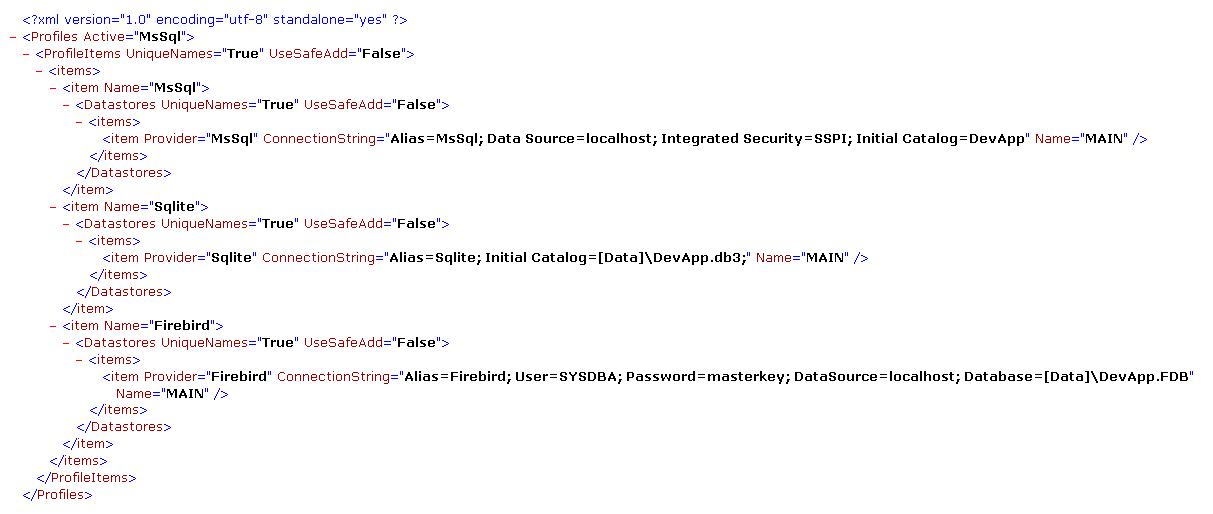
A profiles file is a list of profile items. One of those profile items is the Active profile. The Active profile is denoted by the Active attribute of the root Profiles tag. A Tripous application, in the start up, asks the user to select the Active profile, if the Active profile is not defined. Also if the user starts the application and keeps pressed the Ctrl key, Tripous displays the same "Select active profile" dialog box for the user to choose or create a new profile.
Each one of those profile items contains a list of Datastore items. A datastore item contains the connection settings to a database. A profile may contain many datastore connections because an application may use more than one databases. The datastore item named as MAIN is considered the MAIN database of the application. The MAIN database is where Tripous system tables reside. Tripous uses a few database tables for its own needs. The naming of those tables follows the scheme SYS_TABLENAME.
Here is the content of a profile named as Sqlite from that profile file.
<item Provider="Sqlite" ConnectionString="Alias=Sqlite; Initial Catalog=[Data]\DevApp.db3;" Name="MAIN" />
The Provider attribute specifies the provider. Tripous uses "providers" long before the .Net 2 as a way to provide database server neutral access. After that comes the ConnectionString attribute. It is almost identical to a usual connection string used in ADO.NET. The Alias sub-attribute duplicates the Provider attribute. The [Data] literal is a placeholder. At runtime Tripous replaces that placeholder with an actual path. Sqlite and Firebird expect a file name. Not all servers do that of course. The Name attribute specifies the value of the Name property of a Datastore, which is a Tripous class. It is not the name of database.
Here is the content of a profile named as MsSql from the same file.
<item Provider="MsSql" ConnectionString="Alias=MsSql; Data Source=localhost; Integrated Security=SSPI; Initial Catalog=DevApp" Name="MAIN" />
Don't bother to create those databases. Tripous knows how to create empty database files for all of those three servers specified in that Profiles.XML file.
Adjust your ApplicationManager class code to be as the following code.
    class ApplicationManager : ApplicationManagerDesktop
    {
        private CommandSetsToolForm commandSetsToolForm;


        /* other overrides */
        protected override void RealizeCommandSets()
        {
            base.RealizeCommandSets();
            if (commandSetsToolForm != null)
                commandSetsToolForm.RefreshToolForm(commandSets);
        }

        /* initialization-finalization */
        protected override void DoInitialize()
        {
            base.DoInitialize();

            if (SideBar != null)
            {
                commandSetsToolForm = new CommandSetsToolForm();
                SideBar.AddForm(commandSetsToolForm);
                commandSetsToolForm.RefreshToolForm(commandSets);
            }

        }
        protected override void DoFinalize()
        {
            base.DoFinalize();
        }

        /* construction */
        public ApplicationManager()
        {
            Db.ErrorsVisible = true;
            Variables["User.Enabled"] = true;
            Variables["CompanyId"] = 1;
        }
    }
As you may recall the actual ApplicationManager instance is created by the initialization code of the SysMainForm, specifically by the SysMainForm.ApplicationInitialize() method. That method also, after creating the manager, it calls the application manager's ApplicationInitialize() method. The ApplicationManager.DoInitialize() is called as a result of that call sequence.
The DoInitialize() creates a tool form for the command sets. A command set is a set of commands. A CommandSetsToolForm instance is created, as a child form to the LeftSide control of the MainForm. The application manager instructs that CommandSetsToolForm to display its commands. We'll talk about commands and the Command class in a minute.
The DoFinalize() here does nothing. It's, for now, just for symmetry.
The RealizeCommandSets() is called when initializing and when any of the command sets changes. In Tripous an end user may create command sets using Command objects as members of those sets. The user gives a unique name to each of those command sets . The CommandSetsToolForm tool form is one way to display command sets to the user. Another way is the ToolBar of the MainForm.
Tripous gives you the ability to create versioned database schema on the fly. The SchemaDatastores, SchemaDatastore and SchemaExecutor are the relative classes all found in the Tripous.Data namespace.
You register a SchemaDatastore instance to the SchemaDatastores for any major schema alteration.
A SchemaDatastore has Name and Version properties. Initially you create a SchemaDatastore under the Name MAIN and Version = 1 which, lets say, is the schema of the Version 1 of your appliacation. After a year of succesful sales of your application a need arises to alter that initial schema. Then you create another SchemaDatastore under the same Name MAIN but this time with Version 2. That's all you need to do.
Tripous does the same for its own system tables. Check the ApplicationManagerBase.RegisterSystemSchema() method and the SystemSchema class.
The ApplicationManager.RegisterSchemas() is the place to register schemas for your datastores. Here is the code for that method for our DevAppDesktop application. Add the next method to the ApplicationManager class.
        /* registration */
        protected override void RegisterSchemas()
        {
            base.RegisterSchemas();

            SchemaDatastore schema = schemaDatastores.FindForce(Sys.MAIN, 1);
            SchemaTable Table;


            /* Company */
            string cCOMPANY =
                @"
create table Company  (
   Id                   @PRIMARY_KEY
  ,Name                 varchar(56) not null
);
";

            Table = schema.AddTable("Company", cCOMPANY);

            /* Trader */
            string cTRADER =
                @"
create table Trader (
   Id                   @PRIMARY_KEY
  ,Code                 varchar(32) not null
  ,Name                 varchar(48) not null
  ,IsCustomer           integer default 1 not null
  ,IsSupplier           integer default 0 not null
  ,@COMPANY_ID          integer default -1 not null

  ,constraint FK_Trader_00 foreign key (@COMPANY_ID) references Company (Id)
);
";

            Table = schema.AddTable("Trader", cTRADER);


            /* TradeItem */
            string cTRADE_ITEM =
                @"
create table TradeItem (
   Id                   @PRIMARY_KEY
  ,Code                 varchar(32) not null
  ,Name                 varchar(48) not null
  ,Price                float default 0 not null
  ,@COMPANY_ID          integer default -1  not null

  ,constraint FK_TradeItem_00 foreign key (@COMPANY_ID) references Company (Id)
);
";
            Table = schema.AddTable("TradeItem", cTRADE_ITEM);

            /* Trade */
            string cTRADE =
                @"
create table Trade (
   Id                   @PRIMARY_KEY
  ,Code                 varchar(32) not null
  ,TraderId             integer not null
  ,TradeDate            @DATE not null
  ,@COMPANY_ID          integer default -1 not null

  ,constraint FK_Trade_00 foreign key (@COMPANY_ID) references Company (Id)
  ,constraint FK_Trade_01 foreign key (TraderId) references Trader (Id)
);
";

            Table = schema.AddTable("Trade", cTRADE);

            /* TradeLines */
            string cTRADE_LINES =
                @"
create table TradeLines (
   Id                   @PRIMARY_KEY
  ,TradeId              integer not null
  ,TradeItemId          integer not null
  ,Qty                  float default 1 not null
  ,Price                float not null

  ,constraint FK_TradeLines_00 foreign key (TradeId) references Trade (Id)
  ,constraint FK_TradeLines_01 foreign key (TradeItemId) references TradeItem (Id)
);

";
            Table = schema.AddTable("TradeLines", cTRADE_LINES);
        }
The Trader, TradeItem and Trade is our master tables, in respect to Tripous terminology. The TradeLines is a detail table to the Trade table.
The @PRIMARY_KEY, @DATE etc are just place holders. Tripous replaces those placeholders with the actual data types used by the database server or servers specified in the Profiles.XML file. That's all you need to do to have your schema automatically created. Future schema alterations of the same database are registered under the same Name and a greater Version. That way it is not possible for your service and support personell to forget (oh, tell me about that) to apply the required schema alterations when you ship the next version of your application.
When Tripous creates a schema like the above, it writes an entry to the SYS_INI system table in order to know the current version of the schema. The next time the application runs, it compares the two versions to decide what to do. If the schema registered to SchemaDatastores by the RegisterSchemas() method, is older than the one existing in the SYS_INI, it does nothing. So the above code is going to be executed once and only once, provided that either there is not a SYS_INI table yet, or the entry in the SYS_INI has an lesser or equal version than the one of the line
SchemaDatastore schema = schemaDatastores.FindForce(Sys.MAIN, 1);
The Tripous.BusinessModel.Registry class is the registry of the tripous business model. There is a whole bunch of descriptor classes that describe other classes and operations to the Tripous system. Most of those descriptors are registered to the Registry class which is the central registry regarding business model classes.
Most of the RegisterXXXX() methods of the application manager concern the Registry class and its descriptors. The main descriptor classes are the
All those descriptors have unique names (Name property) among their group.
Tripous.BusinessModel.Broker class is Tripous business object. It represents a business logic domain or business logic module.
A broker is actually a set of correlated tables, represented by DataTable objects, and code. A Broker can be defined in a declarative way using a registered BrokerDescriptor. A BrokerDescriptor class is a Tripous descriptor class that describes the structure and the properties of a Broker class. Later the system can create the actual Broker class instance using the description provided by the BrokerDescriptor as found in the Registry.
Here is the header of the BrokerDescriptors.Add() method
public BrokerDescriptor Add(string DatastoreName, string Name, string MainTableName, string Title, string BrokerClassName, string CodeProducerName);
The ApplicationManager.RegisterBrokers() method is where broker registration happens. Here is the code of that method for our tiny application. Add the next method to the ApplicationManager class.
        protected override void RegisterBrokers()
        {
            base.RegisterBrokers();

            BrokerDescriptor Broker;
            TableDescriptor Table;
            JoinTableDescriptor JoinTable;

            /* Company */
            Broker = Registry.Brokers.Add(Sys.MAIN, "Company", "Company", "Company", "SqlBroker", string.Empty);

            /* Trader */
            Broker = Registry.Brokers.Add(Sys.MAIN, "Trader", "Trader", "Trader", "SqlBroker", "SIMPLE XXXXXX");

            Table = Broker.Tables.Add("Trader", "Trader");
            Table.Fields.Add("Id", SimpleType.Integer, 0, "Id", FieldFlags.None);
            Table.Fields.Add("Code", SimpleType.String, 32, "Code", FieldFlags.Visible | FieldFlags.Searchable | FieldFlags.Required | FieldFlags.ReadOnlyUI);
            Table.Fields.Add("Name", SimpleType.String, 48, "Name", FieldFlags.Visible | FieldFlags.Searchable | FieldFlags.Required);
            Table.Fields.Add("IsCustomer", SimpleType.Integer, 0, "Is customer", FieldFlags.Visible | FieldFlags.Required | FieldFlags.Boolean).DefaultValue = "1";
            Table.Fields.Add("IsSupplier", SimpleType.Integer, 0, "Is supplier", FieldFlags.Visible | FieldFlags.Required | FieldFlags.Boolean);
            Table.Fields.Add(Sys.CompanyFieldName, SimpleType.Integer, 0, "Company", FieldFlags.Required);

            /* TradeItem */
            Broker = Registry.Brokers.Add(Sys.MAIN, "TradeItem", "TradeItem", "TradeItem", "SqlBroker", "SIMPLE XXX-XXX");

            Table = Broker.Tables.Add("TradeItem", "TradeItem");
            Table.Fields.Add("Id", SimpleType.Integer, 0, "Id", FieldFlags.None);
            Table.Fields.Add("Code", SimpleType.String, 32, "Code", FieldFlags.Visible | FieldFlags.Searchable | FieldFlags.Required | FieldFlags.ReadOnlyUI);
            Table.Fields.Add("Name", SimpleType.String, 48, "Name", FieldFlags.Visible | FieldFlags.Searchable | FieldFlags.Required);
            Table.Fields.Add("Price", SimpleType.Float, 0, "Price", FieldFlags.Visible | FieldFlags.Required).DefaultValue = "0";
            Table.Fields.Add(Sys.CompanyFieldName, SimpleType.Integer, 0, "Company", FieldFlags.Required);


            /* Trade */
            Broker = Registry.Brokers.Add(Sys.MAIN, "Trade", "Trade", "Trade", "SqlBroker", "SIMPLE XXX-XXX");
            Broker.BrowserSql.Text =
@"
select
   Trade.Id                 as Id
  ,Trade.Code               as Code
  ,Trade.TradeDate          as TradeDate
  ,Trader.Name              as Trader__Name
from
  Trade
    left join Trader on Trader.Id = Trade.TraderId
";

            Broker.BrowserSql.DisplayLabels.Add("Trader__Name=Trader");

            Table = Broker.Tables.Add("Trade", "Trade");
            Table.Fields.Add("Id", SimpleType.Integer, 0, "Id", FieldFlags.None);
            Table.Fields.Add("Code", SimpleType.String, 32, "Code", FieldFlags.Visible | FieldFlags.Searchable | FieldFlags.Required | FieldFlags.ReadOnlyUI);
            Table.Fields.Add("TraderId", SimpleType.Integer, 0, "TraderId", FieldFlags.Required);
            Table.Fields.Add("TradeDate", SimpleType.Date, 0, "Date", FieldFlags.Visible | FieldFlags.Searchable | FieldFlags.Required).DefaultValue = "AppDate";
            Table.Fields.Add(Sys.CompanyFieldName, SimpleType.Integer, 0, "Company", FieldFlags.Required);

            Broker.LinesTableName = "TradeLines";
            Table = Broker.Tables.Add(Broker.LinesTableName, Broker.LinesTableName);
            Table.MasterTableName = "Trade";
            Table.MasterKeyField = "Id";
            Table.DetailKeyField = "TradeId";
            Table.Fields.Add("Id", SimpleType.Integer, 0, "Id", FieldFlags.None);
            Table.Fields.Add("TradeId", SimpleType.Integer, 0, "TradeId", FieldFlags.Required);
            Table.Fields.Add("TradeItemId", SimpleType.Integer, 0, "TradeItemId", FieldFlags.Required);
            {
                JoinTable = Table.JoinTables.Add("TradeItem", "TradeItemId");
                JoinTable.Fields.Add("Id", SimpleType.Integer, 0, "Id", FieldFlags.None);
                JoinTable.Fields.Add("Code", SimpleType.String, 32, "Item Code", FieldFlags.Visible | FieldFlags.Searchable);
                JoinTable.Fields.Add("Name", SimpleType.String, 48, "Item", FieldFlags.Visible | FieldFlags.Searchable);
                //JoinTable.Fields.Add("Price", SimpleType.Float, 0, "Item Price", FieldFlags.None);
            }
            Table.Fields.Add("Qty", SimpleType.Float, 0, "Qty", FieldFlags.Visible | FieldFlags.Required).DefaultValue = "1";
            Table.Fields.Add("Price", SimpleType.Float, 0, "Price", FieldFlags.Visible | FieldFlags.Required).DefaultValue = "0";

        }
Some brokers are described in a great detail while others are not. It depends on the application needs and the business logic complexity. In any case when an actual Broker instance is constructed, its description is checked by Tripous using database table information and many corrrections and completions may happen.
The BrokerClassName parameter of the Add() method corresponds to the BrokerDescriptor.TypeClassName property and it is very important. The value of that parameter/property is used in obtaining the actual Broker class type.
All the above BrokerDescriptor items define the SqlBroker class as the BrokerClassName of the broker. Tripous.BusinessModel.SqlBroker is the base class of brokers that deal with database data. That SqlBroker class knows how to handle most of the common data entry scenarios with information just provided by its descriptor. When the standard SqlBroker class is not enough then the programmer derives a new broker class from it, to serve its specific needs.
In Tripous business model descriptor system everything has its own descriptor class. The TableDescriptor describes tables of a BrokerDescriptor where the FieldDescriptor describes fields of a table. There is a JoinTableDescriptor that describes tables joined to another table, even in a recursive way. You see Tripous uses the information you provide when registering brokers in order to build SELECT, INSERT, UPDATE and DELETE SQL statements for the "edit part" of the broker.
A BrokerDescriptor provides the BrokerDescriptor.BrowserSql property where you may define the SELECT statement of the "browser part" of a broker.
Master-detail relationships are easily defined as you can see by observing the Trade-TradeLines tables above. That same example contains a JoinTableDescriptor too.
Important: When a descriptor registration requires a class name, such as the SqlBroker above, you should provide the full name including the namespace, unless it is a Tripous class.
Locator is a Tripous notion and it means a piece of code that knows how to locate a database record under certain WHERE criteria. There is a locator control (LocatorBox), a locator column for the DataGridView (LocatorColumn), a locator component (Locator) which incorporates the actual locator logic and of course a LocatorDescriptor.
The ApplicationManager.RegisterLocators() method is where locator registration happens. Here is the code of that method. Add the next method to the ApplicationManager class.
        protected override void RegisterLocators()
        {
            base.RegisterLocators();

            LocatorDescriptor Locator;

            /* Customer */
            Locator = Registry.Locators.Add("Customer", "TraderId", "Trader", "Id");
            Locator.Fields.Add(SimpleType.Integer, "TraderId", "Id", "Trader");
            Locator.Fields.Add(SimpleType.String, "Trader__Code", "Code", "Trader", "Customer Code");
            Locator.Fields.Add(SimpleType.String, "Trader__Name", "Name", "Trader", "Customer");
            Locator.SelectSql.Text = @"select Id, Code, Name from Trader where IsCustomer = 1";

            /* TradeItem */
            Locator = Registry.Locators.Add("TradeItem", "TradeItemId", "TradeItem", "Id");
            Locator.Fields.Add(SimpleType.Integer, "TradeItemId", "Id", "TradeItem");
            Locator.Fields.Add(SimpleType.String, "TradeItem__Code", "Code", "TradeItem", "TradeItem Code");
            Locator.Fields.Add(SimpleType.String, "TradeItem__Name", "Name", "TradeItem", "TradeItem");
            Locator.Fields.Add(SimpleType.Float, "Price", "Price", "TradeItem", "Price").Searchable = false;
        }
Locators is a really advanced matter and we'll forget it for now.
A Command is analogous to a push button or menu. A Command has no visual representation at all though. Instead it can be attached to a push button or menu item or something. Basically a command represents something that the application executes. Either as a result of a user action or as a request from some client code.
A Command, as with all registerable objects in Tripous, has a unique Name. Commands form a tree in order to simulate menus, tree views etc. that may be used to display commands. Commands are also used in putting together a CommandSet described above.
A Processor is a special command, it is the root of a command tree. As long as a Command has no Parent it considers itself a Processor. A Command has a Kind, which indicates the type of a command. There can be Container, Separator, Mdi, Modal or Procedure.
The ApplicationManager.RegisterCommands() method is where command registration takes place. Here is the code of that method. Add the next method to the ApplicationManager class.
        protected override void RegisterCommands()
        {
            base.RegisterCommands();

            Command P = mainProcessor;
            Command Container;

            /* Admin */
            Container = Command.CreateContainer("ADMIN", Res.GetString("Administration", "Administration"));
            P.InsertAfter("FILE", Container);

            Container.AddMdi("Trader", Res.GetString("cmdTrader", "Traders"), DataMode.Browse);
            Container.AddMdi("TradeItem", Res.GetString("cmdTradeItem", "Trade Items"), DataMode.Browse);
            Container.AddMdi("Trade", Res.GetString("cmdTrade", "Trades"), DataMode.Browse);
        }
The application manager already has its own Command Processor defined. It actually is the Registry.MainProcessor object. The ApplicationManager.mainProcessor protected field returns that Registry.MainProcessor. This is the processor Tripous itself uses to register its own system commands. The FILE command is one of those system commands.
Our RegisterCommands() method inserts a Container Command, named ADMIN, after the system's FILE Command. Then it registers three MDI form Command items. A Command of the Form type it must create a Windows Form object when it is executed.
Tripous will use the Commands found in the mainProcessor, the Registry.MainProcessor, in order to create, on the fly, the MainForm's main menu items and other command representations. You do not create main menu items in Tripous. Just Command items.
When a Form Command named "Trader" is executed, it tries to find a FormDescriptor with the same name. A FormDescriptor is a really simple descriptor and it just provides the name of the Form class and a few other settings.
The ApplicationManager.RegisterForms() method is where form registration is done. Here is the code of that method. Add the next method to the ApplicationManager class.
        protected override void RegisterForms()
        {
            base.RegisterForms();

            FormDescriptor FormDes;

            FormDes = Registry.Forms.Add("Trader", "Traders", "Project.TraderForm", "Trader", FormFlags.SingleInstance);
            FormDes = Registry.Forms.Add("TradeItem", "Trade Items", "Project.TradeItemForm", "TradeItem", FormFlags.SingleInstance);
            FormDes = Registry.Forms.Add("Trade", "Trades", "Project.TradeForm", "Trade", FormFlags.SingleInstance);
        }
Tripous registers its own system forms with the same way.
As you can see there are three form descriptor items named after the corresponding Command items. Each FormDescriptor item defines its own Form class name: TraderForm, TradeItemForm and TradeForm. Those Form objects are not yet exist. Our next task is to create them.
Important: When a descriptor registration requires a class name, such as the TraderForm above, you should provide the full name including the namespace, Project.TradeForm, unless it is a Tripous class.
We are going to create the TradeForm.
Add a new form using the Visual Studio wizard (Solution Explorer | right click on the project | Add | Windows form).
Name the source code document TradeForm.cs and the form class TradeForm.
Be sure that the new form belongs to the Project namespace. Check both the TradeForm.cs and the TradeForm.designer.cs files just to be sure.
Build (Shift + F6) the project.
Go to the TradeForm.cs and add a using to the Tripous.Forms namespace.
Change the TradeForm base class from Form to DataEntryBrokerForm. Here is the full code.
        using System;
        using System.Collections.Generic;
        using System.ComponentModel;
        using System.Data;
        using System.Drawing;
        using System.Linq;
        using System.Text;
        using System.Windows.Forms;
        using Tripous.Forms;

        namespace Project
        {
            public partial class TradeForm : DataEntryBrokerForm
            {
                public TradeForm()
                {
                    InitializeComponent();
                }
            }
        }
Build (Shift + F6) the project. Now if you double click on TradeForm in the Solution Explorer you will see the browse part of the form, that is something like the following.
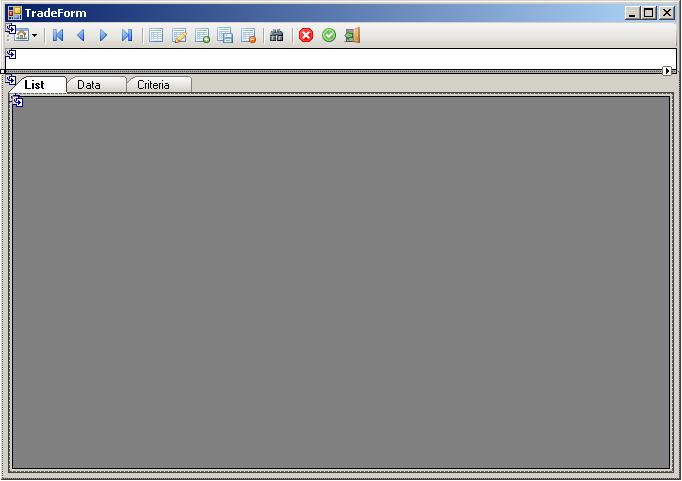
Switch to the Data TabPage.
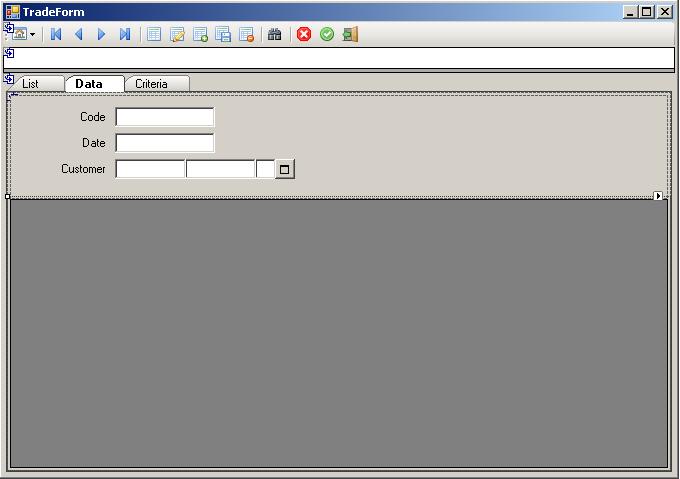
Add a Panel and set its Dock property to Top.
From the Tripous tab of the Toolbox add a DataGridViewEx and set its Dock property to Fill.
From the Tripous tab of the Toolbox add two TextBoxEx text boxes and a LocatorBox to the panel. Add LabelEx labels in front of those three controls.
Tripous.Forms.TextBoxEx provides the extra properties DataField and DataSourceName. Those two properties are used in binding the control to database data. DataField is mandatory. So set the one to Code and the other to TradeDate. These are fields of the Trade database table. Leave the DataSourceName empty. An empty DataSourceName property of a TextBoxEx text box instructs Tripous to bind the control to the Broker.tblItem DataTable, that is to the top table of the Broker.
You may use the word Item as the DataSourceName which has the same effect as leaving it empty. And ofcourse you may explicitly set the DataSourceName to Trade which is the name of the top table as it is defined in the BrokerDescriptor earlier.
Tripous.Forms.LabelEx has, by default, its TextAlign property set to MiddleRight. And it also contains code and logic to retain its right position when its text changes. Setting the TextAlign property of a LabelEx to XXXRight and leaving enough free space from its left side makes localization of the form easier.
Tripous.Forms.LocatorBox is a very special control. Some of its functionality is described earlier. Set its DataField property to TraderId and its DescriptorName property to Customer. Setting the DescriptorName to something other than an empty string instructs Tripous to seach the Registry for a LocatorDescriptor with that Name and provide its settings to the control. It is possible though to drop a LocatorDescriptor on the form and assign that local LocatorDescriptor name to the control. The logic of finding a locator descriptor can be found in the DataEntryForm.FindLocatorDescriptor() virtual method.
Lets setup the DataGridViewEx now.
Name it gridLines. Set its DataSourceName property to the word Lines. This instructs Tripous to bind the control to the BrokerDescriptor.LinesTableName. This is useful when a master table has just a single detail table, as is our case here with the Trade and TradeLines table.
Tripous.DataGridViewEx provides the Locators property which is a collection. Click the button next to the Locators property, add an entry and set its DescriptorName property to TradeItem and its DataField property to TradeItemId. You don't have to create columns for the grid manually. Tripous has enough information now to setup the grid. That information has given earlier in the BrokerDescriptor and the LocatorDescriptor.
The data entry part of the TradeForm should now look like the following.
Create the other two forms, the TraderForm and the TradeItemForm form as described above for the TradeForm.
The test application should be ready now. Hit F5 to run the application with the debugger.
If you hold down the Ctrl key the "Select active profile" dialog appears.
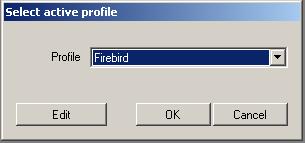
The user may select the active profile or create a new one. If the database of the MAIN Datastore of the active Profile does not exist, Tripous will try to create it.
Next, the login form appears.
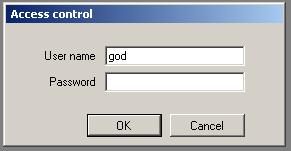
After that you may login, withour restarting the application, as a different user but you can not select a different Profile.
If the database of the MAIN Datastore of the selected Profile does not exist, Tripous will try to create it.
There are three predefined and hard-coded user accounts in Tripous. The highest is the account with user name god and password knows. The other two are service-trustno1 and sys-admin.
Enter the password and hit OK. Tripous creates the database if not exists and then starts the application and then displays the MainForm. The MainForm creates the ApplicationManager and then it calls its ApplicationManager.ApplicationInitialize(). Check the Tripous.Forms.SysMainForm.ApplicationInitialize() method to see the sequence. The application creates and displays the menu items in the MainForm. The application is ready now.
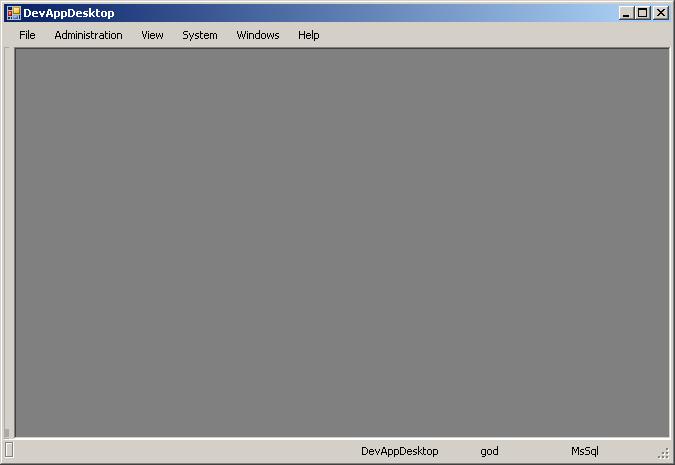
The second menu item in the menu bar, the one labelled as Administration, is the one that contains the menu items created after our own Commands. It contains menu items that trigger Command objects that end up creating and displaying the forms we have defined.
A form Command, that is a Command with its Kind set to Mdi or Modal, is finally handled by the ExecuteFormCommand() and ExecuteStandardFormCommand() virtual methods of the Tripous.Forms.ApplicationManagerDesktop class which is the base of the ApplicationManager class of this application. Here is the ExecuteStandardFormCommand().
        protected virtual bool ExecuteStandardFormCommand(Command Command)
        {
            if (IsFormCommand(Command))
            {
                LastFormCommand = Command;
                DataEntryForm.Show(Command);
                return true;
            }

            return false;
        }
As you can see it just call the static method DataEntryForm.Show() passing the Command object. The DataEntryForm.Show() is a quite complex method that, in short, collects information from the Registry regarding the FormDescriptor and the BrokerDescriptor, creates the form instance and the broker instance, connects the two, and displays the form.
That's it. We have just created our first fully functional Tripous application.